Introduction
If you manage Windows endpoints at any real scale, you already know the friction around monthly patching. It is not the download that kills you. It is the restart. Users lose their working state, VDI sessions drop, kiosks go offline at the wrong hour, and helpdesk tickets spike every Patch Tuesday because someone forgot they had unsaved work. The operational cost of those restarts has always been treated as an acceptable trade-off for staying current on security fixes. Windows Hotpatch changes that equation.
Hotpatch is Microsoft's mechanism for applying security updates to the Windows kernel while the operating system is still running — no restart required. It is not a preview feature anymore. As of early 2026, it is generally available for Windows 11 Enterprise 24H2 devices managed through Intune, and it is the single biggest quality-of-life improvement to Windows servicing since Windows Update for Business replaced WSUS for most organizations.
This guide walks through everything your team needs to get hotpatching working in production: the prerequisites that actually trip people up, the Intune configuration from start to finish, how to verify it is working, what to tell your users and leadership, and the pitfalls we have seen teams walk into during early adoption. If you have been meaning to evaluate hotpatch but have not found a comprehensive walkthrough written for people who actually manage endpoints, this is it.
What Windows Hotpatch Actually Is
The term "hotpatch" has floated around the Windows Server world for a while, but the desktop implementation works differently enough that it is worth explaining from scratch. In traditional Windows patching, a cumulative update (the "LCU" — Latest Cumulative Update) replaces system files, updates the kernel, and requires a restart to swap in the new binaries. That restart is not optional. The update literally cannot take effect until the old kernel image is unloaded from memory and replaced.
Hotpatch takes a different approach. Instead of replacing entire binaries, Microsoft delivers a patch that modifies the running code in memory. The kernel stays loaded. The user's session stays intact. The patch takes effect immediately. No reboot dialog. No forced restart countdown. No "Windows updated and restarted your PC" surprise when you come back from lunch.
Here is the critical nuance: hotpatch does not eliminate restarts entirely. It operates on a quarterly cadence. Every quarter, one month is designated as a "baseline" month where you receive a full cumulative update that does require a restart. The other two months in that quarter receive hotpatches — security-only deltas applied on top of that baseline, with no restart needed.
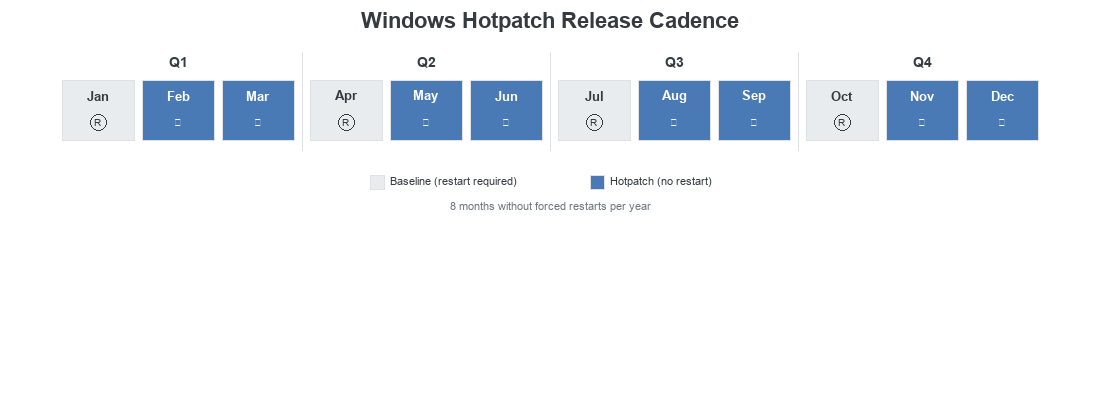
The practical result is that out of twelve months in a year, your devices only need a patch-related restart in four of them — January, April, July, and October. The other eight months, devices receive their security updates silently in the background while users keep working. That is a dramatic reduction in disruption.
Baseline vs. Hotpatch Months
| Quarter | Baseline Month | Hotpatch Months | Restart Required |
|---|---|---|---|
| Q1 | January | February, March | January only |
| Q2 | April | May, June | April only |
| Q3 | July | August, September | July only |
| Q4 | October | November, December | October only |
One thing that trips teams up early: hotpatch months still deliver security fixes. They are not "lite" patches. They contain the same CVE remediations that would have been in a traditional LCU — they are just delivered as in-memory patches instead of file replacements. The security posture is the same. The delivery mechanism is what changes.
Another important detail: if a device misses a hotpatch or falls behind, it will receive the next available baseline update and restart at that point. Hotpatch is not a way to defer indefinitely. It is a way to reduce restart frequency to the quarterly minimum while staying fully patched in between.
Why This Matters in Real Environments
Hotpatch is not a marginal improvement. For organizations with shift workers, shared devices, VDI environments, or users who resist restarts, this is the difference between patching being a constant fight and patching being nearly invisible.
Let's talk about what this looks like in practice. Consider a mid-size organization with 500 Windows 11 devices. Before hotpatch, every single Patch Tuesday triggers a restart cycle across the fleet. Even with compliance deadlines and automatic restart policies, the reality is messier than the policy implies. Users defer. Devices are offline. Laptops in sleep mode miss the maintenance window. IT ends up chasing stragglers for two weeks after every patch release, and compliance dashboards show a slow crawl toward 95% instead of a clean cutover.
With hotpatch enabled, eight out of twelve months simply do not have this problem. The update downloads, installs in the background, and takes effect. No user interaction. No helpdesk tickets about "my computer restarted and I lost my work." No angry emails from the CFO whose Excel model was open for three days straight. The four baseline months still require restarts, but that is a manageable, predictable cadence that you can plan around with maintenance windows and user communication.
The compliance angle matters too. Many frameworks — NIST, CIS, SOC 2 — require security patches to be applied within a defined window, often 14 or 30 days. When patches require restarts, the real bottleneck is not the patch download; it is getting users to actually restart. Hotpatch removes that bottleneck for two-thirds of the year. Your compliance numbers improve not because you changed your policy, but because the technology stopped fighting your users.
That said, hotpatch is not a silver bullet and you should not pitch it to leadership as one. Quarterly restarts still happen. Feature updates still require restarts. And if a device is not eligible (more on that shortly), it falls back to the standard LCU path with monthly restarts. You need governance around all of this. But hotpatch makes the governed state dramatically easier to maintain.
Before You Touch Intune: Prerequisites and Readiness
This is the section that saves you from configuring everything in Intune, assigning it to your fleet, and then wondering why nothing changed. Hotpatch has a real set of prerequisites, and several of them are not immediately obvious. Here is what you need to verify before you create a single policy.
Licensing
Hotpatch requires one of: Microsoft 365 E3, E5, F3, A3, A5, Business Premium, or a standalone Windows 365 Enterprise license. If your organization is on Microsoft 365 Business Basic or Standard without the Enterprise/Business Premium add-on, hotpatch is not available to you. This is a common surprise for smaller organizations that assumed all Intune features are part of any M365 plan.
Operating System
Windows 11 version 24H2 or later. That is a hard requirement. Devices running 23H2 or earlier are not eligible regardless of licensing or configuration. If you are still on a phased rollout of 24H2, only the devices that have completed the feature update will receive hotpatches. This is worth checking before you assume fleet-wide coverage.
Windows Edition
Enterprise, Pro, or Education editions are supported. Home edition is not (obviously). The one that catches teams off guard: Windows 11 LTSC is not supported. If you have long-lifecycle devices — factory floors, medical equipment, kiosks — running LTSC, those devices cannot receive hotpatches and will continue on the standard LCU path.
Device Join Type
Devices must be either Microsoft Entra joined (cloud-native) or Microsoft Entra hybrid joined. Devices that are only Microsoft Entra registered (the BYOD/personal device scenario) are not eligible. This distinction matters because many organizations have a mix of join types, and "it shows up in Intune" does not mean it qualifies for hotpatch.
Virtualization-Based Security (VBS)
This is the prerequisite that causes the most confusion. VBS must be running on the device. VBS uses hardware virtualization to create an isolated memory region for security processes, and it is the underlying technology that makes in-memory kernel patching safe. Without VBS, the OS cannot guarantee that a hotpatch will not corrupt running kernel state.
On any device, open msinfo32.exe and look for "Virtualization-based security." It should show "Running." If it shows "Not enabled," VBS needs to be turned on — typically via Intune device configuration profile or Group Policy. Note that VBS requires UEFI Secure Boot and a compatible processor, so very old hardware may not qualify.
Diagnostic Data
The Windows diagnostic data setting must be at "Required" level or higher (previously called "Basic"). If your organization has locked this down to "Security" or "Off" for privacy reasons, hotpatch will not function. The service needs telemetry to determine patch applicability and success.
ARM64 Devices
ARM64 devices (Surface Pro X, Lenovo ThinkPad X13s, etc.) are supported but with a caveat: the CHPE (Compiled Hybrid Portable Executable) compatibility layer must be disabled. CHPE is what allows 32-bit x86 apps to run on ARM64 under emulation. Disabling it means those 32-bit emulated apps will stop working. For organizations that still rely on legacy 32-bit applications on ARM hardware, this is a real trade-off, not just a checkbox.
Network Connectivity
Devices need to reach the standard Windows Update endpoints. If you use a proxy or firewall with URL filtering, verify that the WUfB endpoints are allowed. This is not unique to hotpatch, but if a device cannot reach Windows Update, it cannot receive any patches — hotpatch or otherwise.
We have seen teams enable hotpatch in Intune, assign it to "All Devices," and declare victory — only to find that 40% of their fleet did not qualify. VBS was not running, devices were still on 23H2, or the join type was wrong. Always run a readiness assessment first. Use Intune's built-in reporting or a custom compliance policy to identify eligible vs. ineligible devices before you roll this out.
Readiness Checklist
| Requirement | What to Check | How to Verify |
|---|---|---|
| Licensing | M365 E3/E5/F3/A3/A5 or Business Premium | M365 Admin Center > Licenses |
| OS Version | Windows 11 24H2+ | winver or Intune device properties |
| Edition | Enterprise, Pro, or Education | winver or Intune |
| Join Type | Entra joined or hybrid joined | dsregcmd /status |
| VBS | Running | msinfo32 > Virtualization-based security |
| Diagnostics | Required level or higher | Settings > Privacy > Diagnostics |
| ARM64 CHPE | Disabled (if ARM64) | Registry or Intune config profile |
| Network | WUfB endpoints reachable | Test connectivity to update endpoints |
How the Pieces Fit Together
Before you start clicking through the Intune portal, it helps to understand how the different update management components relate to each other. There are three primary policy surfaces that interact with hotpatch, and getting confused about which one does what is a common source of misconfiguration.
Quality Update Policies are where you enable the hotpatch toggle. This is the policy type that tells Windows Update for Business to deliver hotpatches to eligible devices instead of standard LCUs during hotpatch-eligible months. It also controls the cadence — whether to apply updates as soon as available or defer them by a set number of days. This is the policy you will create in the step-by-step section below.
Update Rings are the broader servicing configuration — deferral periods, compliance deadlines, active hours, restart behavior. Update rings existed long before hotpatch and continue to govern the overall update experience. Here is what matters for hotpatch: update ring settings still apply during baseline months. If your update ring defers quality updates by 7 days, that deferral applies to both standard LCUs and baseline-month cumulative updates. Hotpatch months skip the restart portion, but deferrals still determine when the patch is offered.
Windows Autopatch is Microsoft's orchestration layer. If your tenant is enrolled in Autopatch, it manages the rollout cadence across device rings (Test, First, Fast, Broad) automatically. Hotpatch integrates with Autopatch — meaning Autopatch-managed devices will receive hotpatches according to the ring schedule, with the Test ring getting them first and Broad getting them last. If you are not using Autopatch, you manage the rollout yourself through group assignments on your quality update policies.
The key takeaway: the hotpatch toggle lives in a Quality Update Policy, but the overall update behavior is a combination of that policy, your update ring settings, and (optionally) Windows Autopatch orchestration. All three layers need to be aligned. If your update ring forces a restart every 7 days regardless of update status, that can conflict with the "no restart" promise of hotpatch months. Review your ring settings before enabling hotpatch.
Step-by-Step Configuration
With prerequisites verified and the architecture understood, here is the actual Intune configuration. The entire setup takes about ten minutes, but the details matter.
Verify Tenant Readiness and Autopatch Enrollment
Before creating any policies, confirm that your tenant is set up correctly. In the Intune admin center, navigate to Tenant administration > Windows Autopatch > Autopatch groups. If your organization uses Autopatch, you should see your device rings here (Test, First, Fast, Broad). Verify that devices appear in the expected rings and that the enrollment status is active.
If you do not use Windows Autopatch, you can skip this step — but you will need to manually manage rollout phases through group assignments in your quality update policy. Autopatch is not required for hotpatch, but it simplifies staged rollout.
Navigate to Quality Update Policies
In the Intune admin center, go to Devices > Windows updates. You will land on the Releases tab, which shows an overview of your current update policies. Take note of the "Quality updates" counter — this tells you how many quality update policies already exist in your tenant.
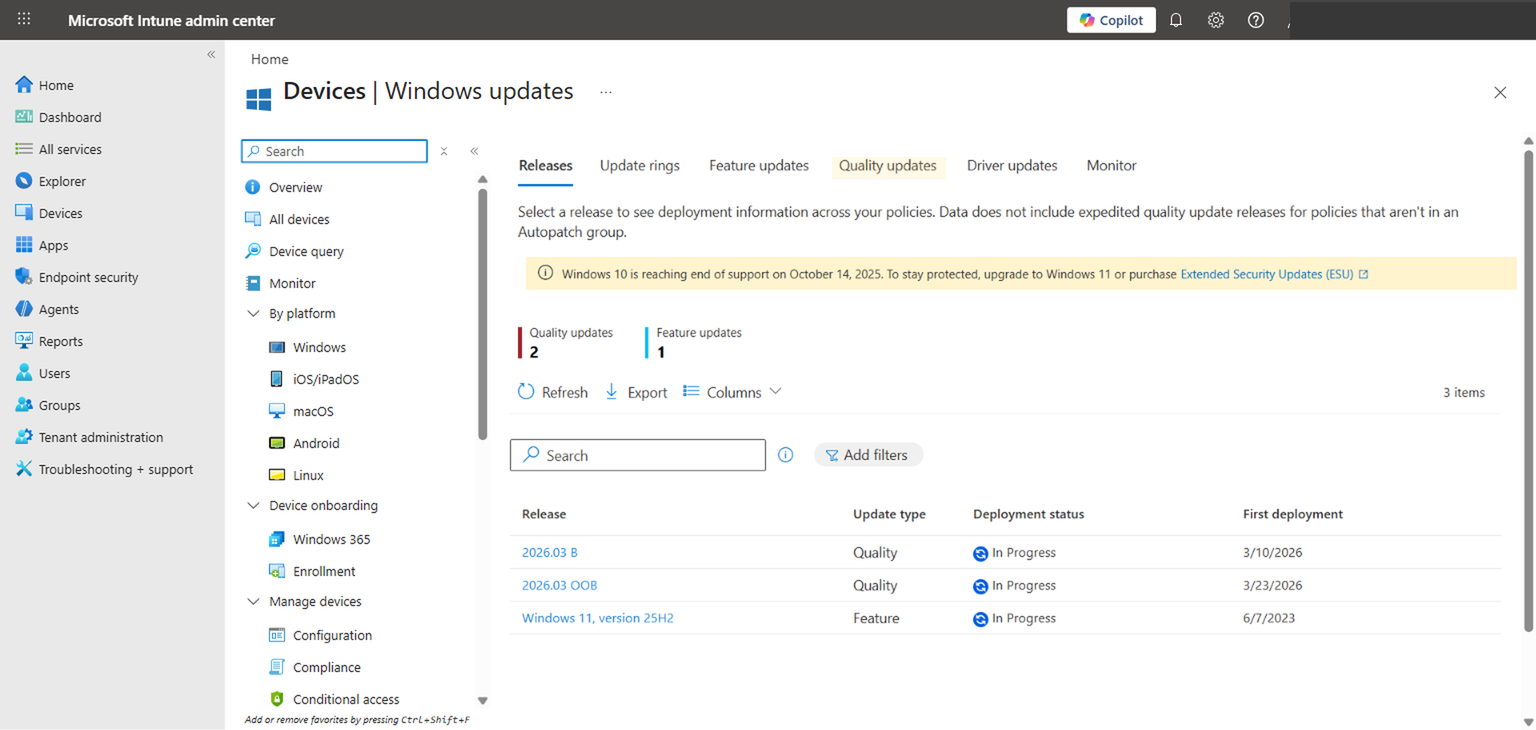
Click the Quality updates tab. This view lists all existing quality update policies and includes a "Hotpatch Enabled" column that tells you at a glance which policies have hotpatching turned on. If this is your first time configuring hotpatch, you may see existing expedite policies with "N/A" in the Hotpatch column — that is expected, since hotpatch only applies to standard quality update policies, not expedite policies. You will create a new policy in the next step.
Create a Quality Update Policy
Click + Create and select Windows quality update policy. On the Basics tab, give your policy a descriptive name — something like "Quality Updates - Hotpatch Enabled - Pilot" so that anyone looking at the policy list immediately understands what it does and who it targets. The description field is optional but useful for documenting the intended scope and any relevant change control ticket numbers. Click Next to proceed to the Settings step.
Enable the Hotpatch Toggle
The Settings page is where hotpatch lives. You will see a section called "Automatic update deployment settings" with two key toggles. The first toggle — "Automatically deploy updates as they become available" — controls whether quality updates are delivered automatically. This is typically set to "Allow" and may be grayed out if Autopatch manages the cadence.
The second toggle is the one you are here for: "When available, apply without restarting the device ('hotpatch')". Set this to Allow. This tells Windows Update for Business to deliver hotpatches instead of standard LCUs during hotpatch-eligible months on devices that meet the prerequisites.
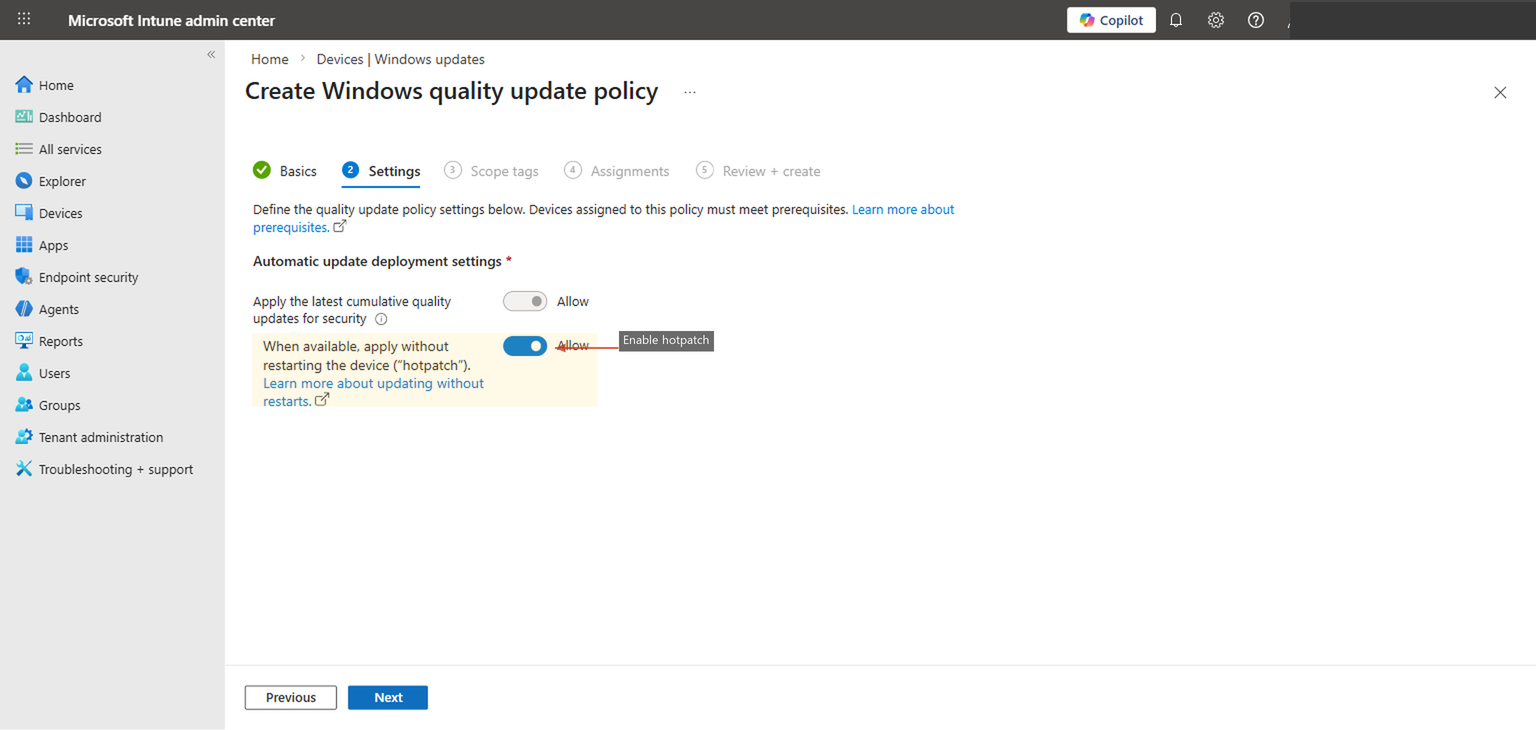
The first toggle ("Automatically deploy updates") and the hotpatch toggle are separate controls. Enabling hotpatch does not change your deferral settings or override your update ring configuration. Hotpatch only controls the delivery mechanism — whether eligible updates are applied as in-memory patches or as traditional file replacements requiring a restart.
Click Next through the Scope Tags step (add tags if your organization uses them for RBAC scoping, otherwise leave defaults).
Assign to a Pilot Group
On the Assignments tab, assign the policy to a limited test group first. Do not assign this to "All Devices" or "All Users" on day one. Start with a group of 5-10 devices — ideally machines used by your IT team or a willing department that can provide feedback and tolerate any unexpected behavior during the first patch cycle.
Your pilot group should include a mix of device types that represent your fleet: at least one desktop, one laptop, one VM if you use AVD or Windows 365, and one ARM64 device if applicable. This gives you coverage across the hardware scenarios where hotpatch behavior may differ. Do not pilot exclusively on brand-new Surface devices and then wonder why older Lenovo ThinkPads behave differently in production.
Click Next to review your configuration, then click Create. The policy will begin syncing to targeted devices on their next Intune check-in, but you will not see hotpatch behavior until the next hotpatch-eligible month arrives.
Monitor and Validate
After the policy is assigned, navigate back to Devices > Windows updates and click the Monitor tab. This dashboard shows Autopatch management status, deployment status per update ring, and alerts across quality, feature, and driver update policies. It is the fastest way to confirm that your devices are receiving updates through cloud policies and that no errors or conflicts have been introduced.
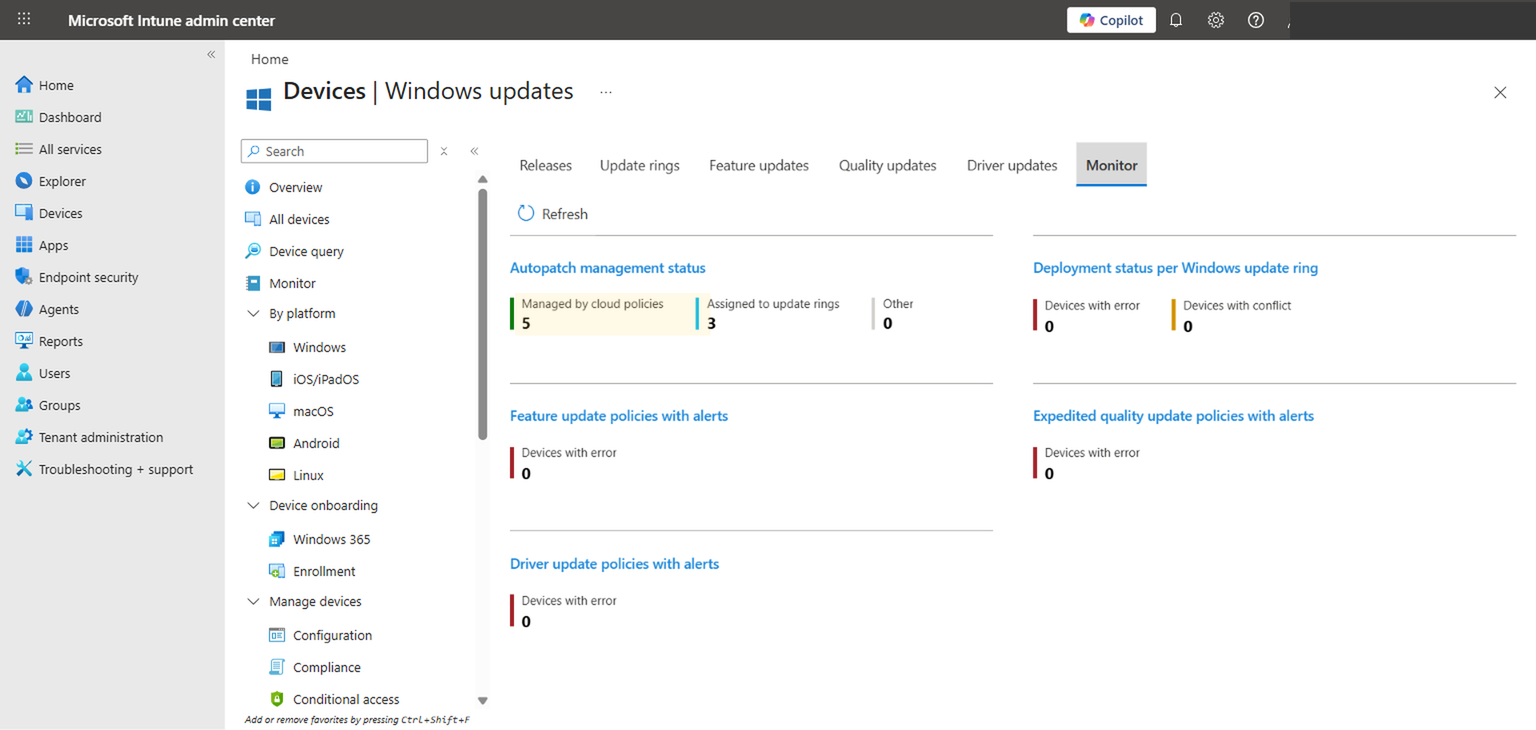
In the quality update report, look for the "Hotpatch" column on individual devices. A status of "Applied" during a hotpatch month confirms the device received and installed the update without a restart. If you see "Not applicable," the device did not meet one or more prerequisites. Drill into the device details to find out which requirement was not satisfied.
How to Monitor and Validate
Intune reporting gives you the fleet-level view, but there are times when you need to verify hotpatch status on an individual device. Here is what to look for at each level.
Intune Admin Center
The quality update reports in Intune show policy assignment status, update installation status, and whether the update was applied as a hotpatch or a standard LCU. This is your primary monitoring surface. Pay attention to devices that show "Pending restart" during hotpatch months — that typically means the device was ineligible and fell back to the standard update path. Investigate those devices individually to determine why.
Device-Level Verification
On the device itself, open Settings > Windows Update > Update history. Hotpatch updates appear with a specific KB article number and will show "Successfully installed" without a corresponding restart entry in the event log. You can also check Settings > Windows Update > Configured update policies to confirm that the quality update policy with hotpatch enabled has been received by the device.
Event Viewer
For deeper troubleshooting, open Event Viewer and navigate to Applications and Services Logs > Microsoft > Windows > WindowsUpdateClient > Operational. Look for events referencing "AllowRebootlessUpdates." If this value is set to 1, the device is configured to receive hotpatches. If you see errors in this log during update installation, they will point you toward the specific failure — whether it is a VBS issue, an eligibility check failure, or a network connectivity problem.
The Event Viewer approach is particularly useful during your pilot phase. It gives you granular visibility that the Intune dashboard summarizes away. If a pilot device is not receiving hotpatches and the Intune report just says "Not applicable," the event log will often tell you exactly why.
End-User Experience
One of the best things about hotpatch is what users do not see. During hotpatch months, there is no notification, no restart prompt, no "Updates are available" toast. The update downloads in the background, installs silently, and takes effect. The user's session continues uninterrupted. If you do not tell users that hotpatch is enabled, most of them will never notice anything changed — they will just stop seeing the monthly restart nag.
During baseline months (January, April, July, October), the experience reverts to the standard update behavior governed by your update ring settings. Users will see restart notifications, active hours will be respected, and compliance deadlines will enforce the restart if users defer too long. This is the same experience they have today, just less frequent.
Communicating the Change
Even though hotpatch is largely invisible, it is worth communicating the change to your helpdesk and end users. Helpdesk should know that during hotpatch months, they should not expect devices to restart for patching, and any restart prompts during those months indicate the device is ineligible. For end users, a simple message along the lines of "We have enabled a new update technology that reduces required restarts to four times per year" sets the right expectation without overexplaining the mechanics.
Manage expectations carefully. Quarterly restarts still happen. Feature updates still require restarts. And application updates (Office, Edge, drivers) have their own restart requirements that hotpatch does not affect. Hotpatch reduces patch-related restarts by two-thirds — it does not eliminate restarts entirely.
Common Pitfalls and Troubleshooting
After working with organizations deploying hotpatch, the same issues come up repeatedly. Here are the ones that waste the most time.
Enabling the toggle in a quality update policy does not guarantee hotpatch delivery. The policy tells Intune to offer hotpatches, but the device must independently meet every prerequisite. If VBS is not running, or the device is on 23H2, or it is only Entra registered, the device silently falls back to standard LCU delivery. The policy will show as "assigned" in Intune even though hotpatch is not actually functioning on that device. Always cross-reference policy assignment with per-device update reports.
This is the most common blocker. VBS requires Secure Boot, a compatible CPU with hardware virtualization extensions, and sometimes a firmware update. Many devices shipped with VBS capable but not enabled. If your Intune device configuration does not explicitly enable VBS via the "Device Guard" settings, it may be off on a significant portion of your fleet. Run an Intune report filtering on VBS status before assuming coverage.
24H2 is the hard floor. If your 24H2 feature update rollout is only 60% complete, that means 40% of your devices cannot receive hotpatches regardless of policy. Similarly, LTSC editions are not supported even if they are on the right version number. Run a compliance report filtering on OS version and edition before enabling hotpatch broadly.
If your update ring has an aggressive restart deadline (e.g., force restart within 2 days after update installation), the ring may trigger a restart during hotpatch months even though the hotpatch itself does not require one. This happens when the ring interprets the installed update as pending a restart based on legacy logic. Review your ring's restart settings and ensure they do not conflict with the hotpatch behavior. Specifically, check that "Deadline for quality updates" is set appropriately.
Hotpatches are cumulative on top of the latest baseline. If a device missed the January baseline, it cannot receive the February hotpatch. It will instead receive the full January cumulative update (with a restart) to get current, and then it will be eligible for the March hotpatch. Devices that fall behind do not accumulate hotpatches — they catch up via baselines first.
On ARM64 devices, the CHPE layer must be disabled for hotpatch to work. Disabling CHPE breaks 32-bit x86 application emulation. If users on ARM64 devices rely on legacy 32-bit apps, you face a trade-off: hotpatch or 32-bit compatibility, not both. Test thoroughly on ARM64 before broad deployment, and consider excluding ARM64 devices from hotpatch if 32-bit app compatibility is critical.
Devices that are only Entra registered — which is the default state for personal/BYOD devices enrolled in Intune — are not eligible for hotpatch. Only Entra joined (cloud-native) or hybrid joined (domain + Entra) devices qualify. This is easy to overlook in environments that have a mix of corporate and BYOD devices all managed through Intune. Check join type in device properties or via dsregcmd /status on the device.
Recommended Rollout Strategy
Hotpatch is low-risk relative to most configuration changes, but it still deserves a phased rollout. Here is a three-phase approach that balances validation with speed to value.
| Phase | Scope | Duration | Validation Criteria |
|---|---|---|---|
| Phase 1: Pilot | 5-10 devices (IT team) | 1 patch cycle (1 month) | Hotpatch applied successfully, no adverse effects, VBS confirmed running |
| Phase 2: Limited Production | 50-100 devices (one department) | 1-2 patch cycles | No helpdesk tickets related to hotpatch, compliance reports show improvement |
| Phase 3: Broad Rollout | All eligible devices | Ongoing | Fleet-wide hotpatch adoption rate, baseline month restart compliance |
Phase 1: Pilot
Assign the hotpatch quality update policy to a small group of IT-owned devices. Include at least one laptop, one desktop, and one VM. If you have ARM64 devices, include one. The goal is not just to confirm that hotpatch works — it is to confirm that your specific environment (network, proxy, VBS state, update ring settings) does not introduce unexpected behavior. Monitor for one full patch cycle, which means waiting for a hotpatch month to occur after policy assignment. If you enable the policy in a baseline month, you will not see hotpatch behavior until the following month.
Phase 2: Limited Production
Expand to a single department or business unit. Choose one that has a mix of device types and usage patterns — ideally including some shift workers or users who are sensitive to restarts. This phase validates the user experience at a scale where real-world issues surface. The helpdesk should be briefed: if users in this department stop reporting restart-related issues during hotpatch months, that is a positive signal.
Phase 3: Broad Rollout
Assign the policy to all eligible devices. "Eligible" is the key word — do not assign to devices that do not meet prerequisites, as this just creates noise in your reporting. Use a dynamic device group filtered by OS version (24H2+), join type (Entra joined or hybrid), and VBS status if possible. This ensures the policy only targets devices that can actually receive hotpatches.
Communication Plan
During the pilot, communicate only within IT. During limited production, send a brief message to the test department explaining that restarts will be less frequent and to report anything unusual. During broad rollout, send a company-wide message highlighting the change as a positive improvement: fewer restarts, less disruption, same security level. Keep it simple and do not oversell — "restarts are reduced to quarterly" is accurate and sets the right expectation.
Explaining the Value to Leadership
Technical teams understand the value of reduced restarts intuitively. Leadership needs the argument framed differently. The conversation should center on three things: reduced productivity loss, faster compliance closure, and lower support cost. If your organization has 500 devices and each monthly restart costs an average of 15 minutes of lost productivity (conservative — it is often more when you include the "I was in the middle of something" recovery time), that is 125 hours of lost productivity per month. Hotpatch eliminates that cost for eight months of the year. That is 1,000 hours of productivity recovered annually. For a 500-person organization with an average loaded cost of $50/hour, that is $50,000 in productivity that was being burned on forced restarts.
The compliance argument is equally compelling. If your audit framework requires patches within 14 days and your current average time-to-compliance is 10 days (because users defer restarts), hotpatch drops that to near-zero for eight months of the year. Your compliance posture improves not because you tightened enforcement, but because the technology removed the human bottleneck. For organizations facing SOC 2 audits or working toward CMMC certification, this is a tangible improvement that auditors will notice. Frame it as a technology upgrade that aligns security operations with business operations — which is exactly what it is.
Final Takeaways
Windows Hotpatch is not a revolutionary reimagining of how patching works. It is a practical, well-scoped improvement that addresses the single most frustrating part of Windows servicing: the mandatory restart. By delivering security patches as in-memory modifications during eight months of the year, it dramatically reduces the operational burden of keeping your fleet current without compromising security posture.
The configuration is straightforward — a single toggle in a quality update policy. But the prerequisites are real, and the most common failure mode is assuming every device qualifies when it does not. VBS status, OS version, Windows edition, and device join type all gate eligibility. Verify these before you deploy, not after.
The rollout approach should be phased but does not need to be slow. Pilot for one patch cycle, validate that hotpatch is actually being applied (not just that the policy is assigned), then expand. Monitor through Intune reporting and spot-check with Event Viewer during the pilot. Once you are confident in your eligible device population, broad rollout is low-risk.
If your team wants help validating hotpatch readiness, aligning update policies with your existing ring configuration, or building a broader Intune servicing strategy, Cybernerds can help assess and implement it properly.